Distros 101
What makes up a Linux Distribution?
A Linux Distribution
Typically seen as a general Linux desktop, a distribution is the custom combination of system and operating software that is used by a specific computer.
Software Stacks across Operating Systems
First, let’s look at some familiar diagrams.
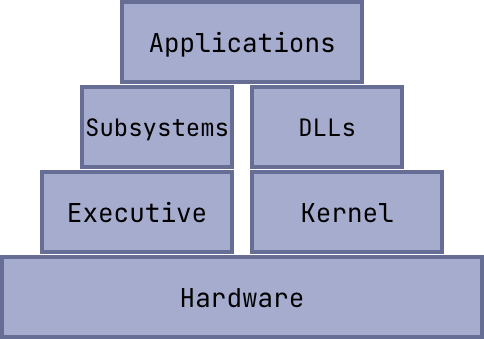
This is the system stack of Windows. On a Windows machine, applications interface with environment subsystems and dynamic link libraries, making system calls to the kernel. The kernel references the executive to poll hardware I/O, request memory, and interface with other processes. This entire communication protocol is defined in the Windows API.
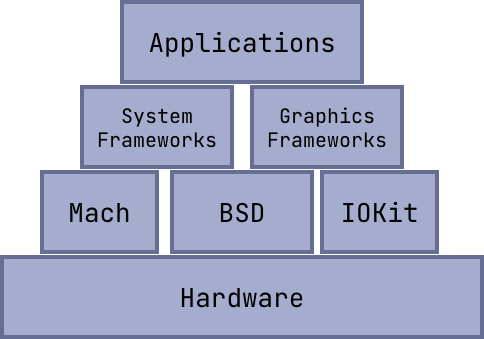
This is the system stack of MacOS. On a Mac, applications interface with various frameworks, both ones pre-included with the system and ones installed by users. These frameworks include system calls to the three-part XNU kernel.
The XNU Kernel is made of
- Mach microkernel: Has the CPU scheduler, virtual memory, and inter-process communication
- BSD Layer: Has the networking and file system stacks, user management, and process control
- IOKit: Device drivers to interface with hardware
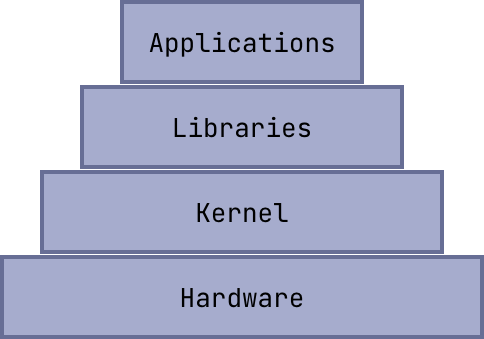
This is the (probably familiar) software stack of a Linux machine. Typically, Linux has two general, but major layers between the hardware and applications. There is the library layer, where lots of lower level functionality is abstracted into usable functions for applications. Some of these well known libraries include libc and libcrypto. Below the library layer is the kernel layer, where processes are scheduled, memory and hardware I/O is managed, and other lower level operations (like those defined in a trap table) are defined.
The Distro Stack
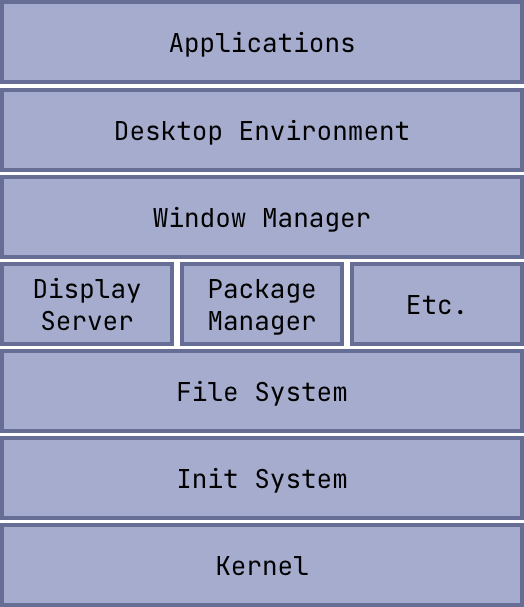
For this, let’s create a new stack of software applications that make up a Linux distribution. When people talk about a certain “distro”, they typically refer to the specific combination of these applications.
Note that this covers Windows and Mac-specific instances of these applications. Can we have distributions of MacOS and Windows? To some extent. While certain Windows and Mac-specific counterparts will be mentioned for comparison’s sake, these operating systems heavily lock down your ability to switch these out and customize them.
The Kernel
From the definition in CSE 30341: Operating Systems, the kernel is the core of the operating system. It provides abstractions such as processes, threads, virtual memory, and filesystems such that applications can efficiently utilize hardware and interact with each other.
Now, the main thing that makes Linux “Linux” is the Linux Kernel. However, distros can still customize this.
Some distributions, such as CachyOS make tweaks to the kernel to optimize compilation time and architecture building. Garuda Linux uses the Zen Kernel which makes use of a different scheduling algorithm to provide lower latency during heavy I/O blocking operations.
Other distributions choose to run a different kernel, such as BSD Kernel. While this is not technically Linux, it being UNIX-based makes it similar to the Linux kernel, and distros such as FreeBSD and NetBSD are typically associated with other typical Linux distributions.
Init System
The Init System is the process manager of the system. It is the first program run by the operating system and typically gets process ID 1. It is the process origin and orphanage and controls services (processes that run in the background).
Some typical init systems include
- systemd: Today the most ubiquitous init system, this large service manager provides lots of process and service management tools (systemctl) and logging features (journalctl). It also houses user management (systemd-logind), network configuration (systemd-networkd and systemd-resolved), and time clock management (timedatectl).
- OpenRC: A service manager built to run with a smaller init system (typically sysvinit). It provides a shell scripting interface to manage system srevices during boot, runtime, and shutdown.
- runit: Replacement for systemd that is a smaller, faster init system and process manager. Services are defined using basic execute and logging shell scripts and are symlinked to enable/disable.
- launchd: MacOS’s init system. It is made of LaunchAgents (user services)
and LaunchDaemons (root services). Services are defined in
.plistfiles using XML. - wininit.exe: (Part of) Windows’ init system. This specifically is the
first system process started during the boot sequence, but does not handle
processes and services directly. Windows’ full service management is from a
suite of applications like
services.exeandcsrss.exe.
File System
The File System manages file organization and storage. It handles the files and directories and depicts it as the familiar tree file structure we know.
Some file systems include
- ext4: The “default” file system option in Linux. It can handle files as large as 16TiB. One key feature is journaling, where file changes are stored in a journal to provide crash consistency.
- xfs: The larger-file complement to ext4. It is proficient with parallel I/O and is good with many storage devices. It’s max file size is 8 EiB.
- btrfs: The binary tree file system. It makes use of copy-on-write where new file data is written to a new location, allowing for file snapshotting at save intervals. This leads to easier file recovery of corrupted or lost files.
- fat32: An older portable file system. This is cross platform to work on Windows, MacOS, and Linux, and is typically seen on removable media. However, it can only support files as big as 4 GiB.
- exFAT: A newer portable file system. It is also cross platform and can handle modern file sizes up to 16 EiB.
The Windows and MacOS file systems respectively are
- NTFS: The standard Windows file system. It has a theoretical max file size of 16 EiB but due to Windows 11 limitations, the actual enforced max file size is 256 TiB.
- APFS: The Apple file system. It has the feature of space sharing, where multiple volumes can exist on a single storage device, and that the volumes can grow and shrink dynamically without losing data.
Package Manager
There are two main categories of package managers: distro-specific and general purpose.
Distro-specific package managers, like apt, dnf, and pacman, are
associated with distros, as their underlying technologies (deb, rpm,
pkg.tar) are used to handle the distro system libraries and package
repositories.
General-use package managers, like snap, flatpak, and AppImage, provide a distro-independent interface to manage packages, but they are not as tied into the system and potentially require more maintenance for system updates and conflict resolution.
Package managers also exist on Windows (winget) and MacOS (homebrew).
Display Server
A display server is just the middleman between hardware I/O and the application itself. There are two main display servers in use today.
X11 is the older option. It operates as a monolithic display server, where a single instance of X controls rendering and hardware interaction for all applications. This means there is no separation between apps, and apps can listen to other apps’ hardware communication.
Wayland is the newer option. It operates as a micro-display server in the sense that each application is isolated in its communication stream. However, Wayland is different than X11 in that it is a protocol that is implemented by the window manager (known as a Wayland compositor).
Window Manager
Window managers handle windows, simply put. They handle window appearance (borders, title bars, buttons, …) and actions (resizing, moving, stacking, tiling, …). Typically, they either are heavily tied with a specific desktop environment or work independently.
Kwin and Mutter are window managers heavily tied to KDE and GNOME respectively. They aren’t really ever meant to be run on their own, and provide an extremely limited user experience when done so.
i3 and bspwm are examples of tiling X11-based window managers. They are independent of a desktop environment, so people who use them typically customize their system by combining them with menu bars, application launchers, and other keybinds to make their workflow efficient. (side note: a tiling window manager is one where windows are not “floating” in screen space, they snap to screen or window edges and typically stay aligned in some screen ratio)
Desktop Environment
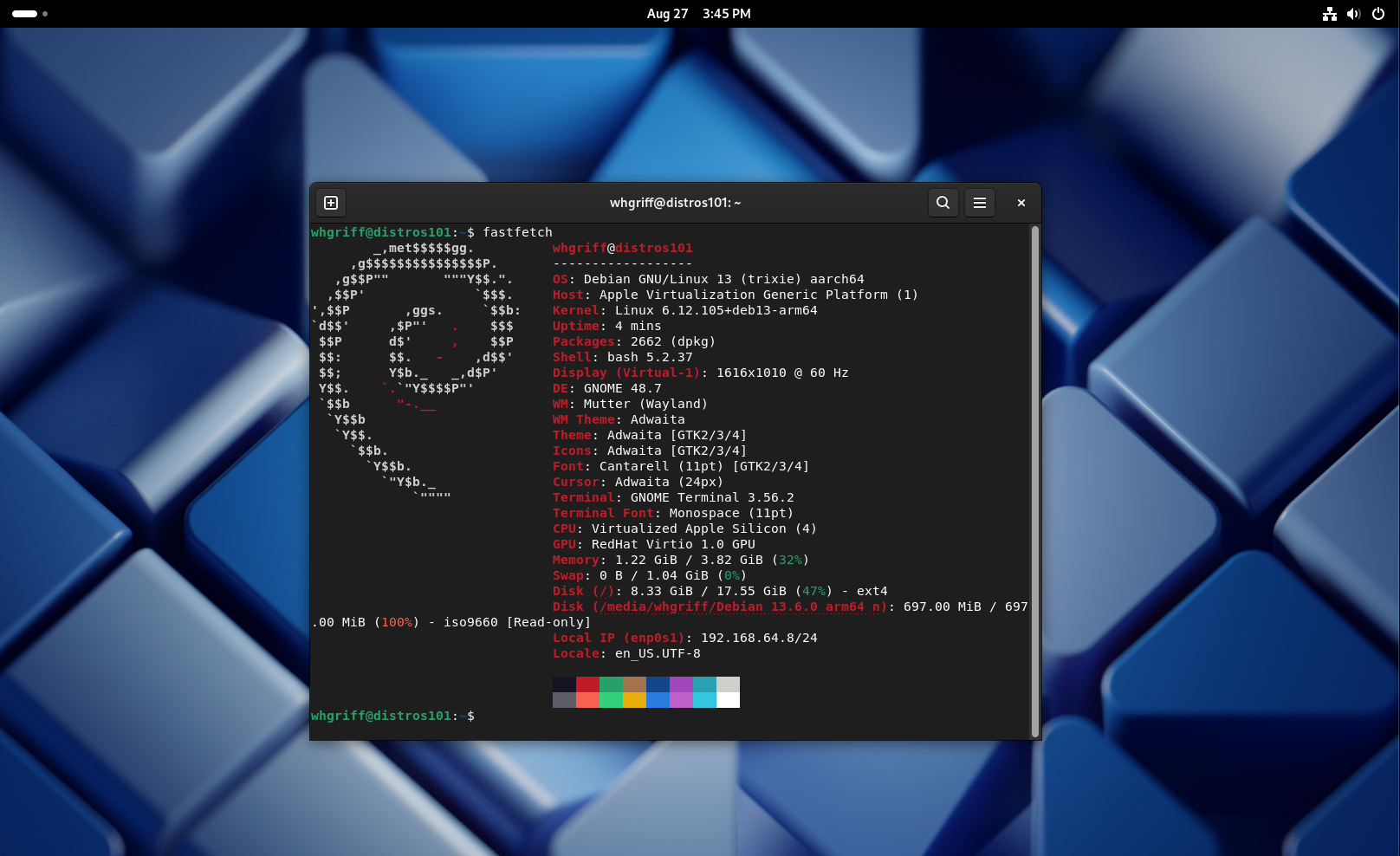
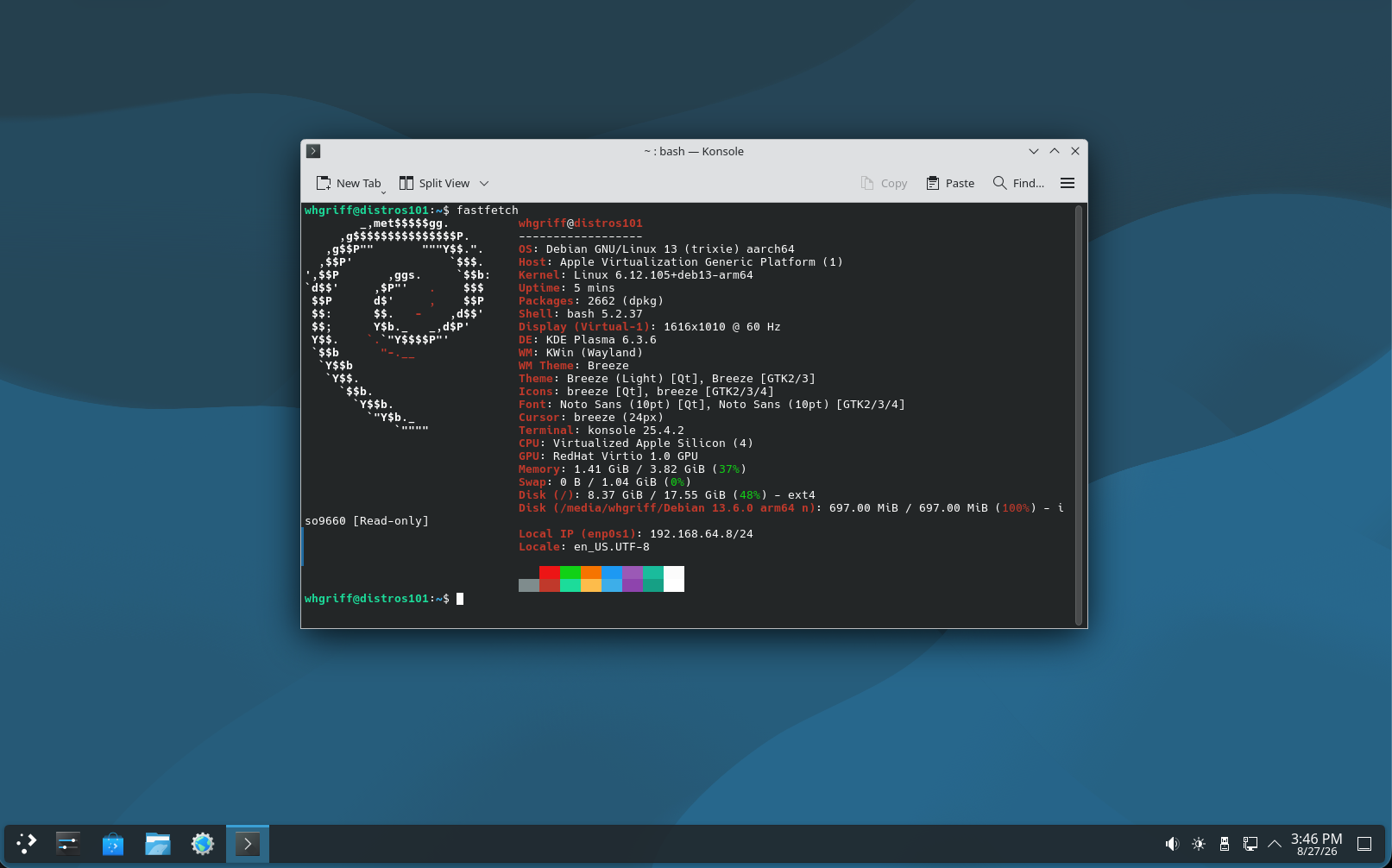
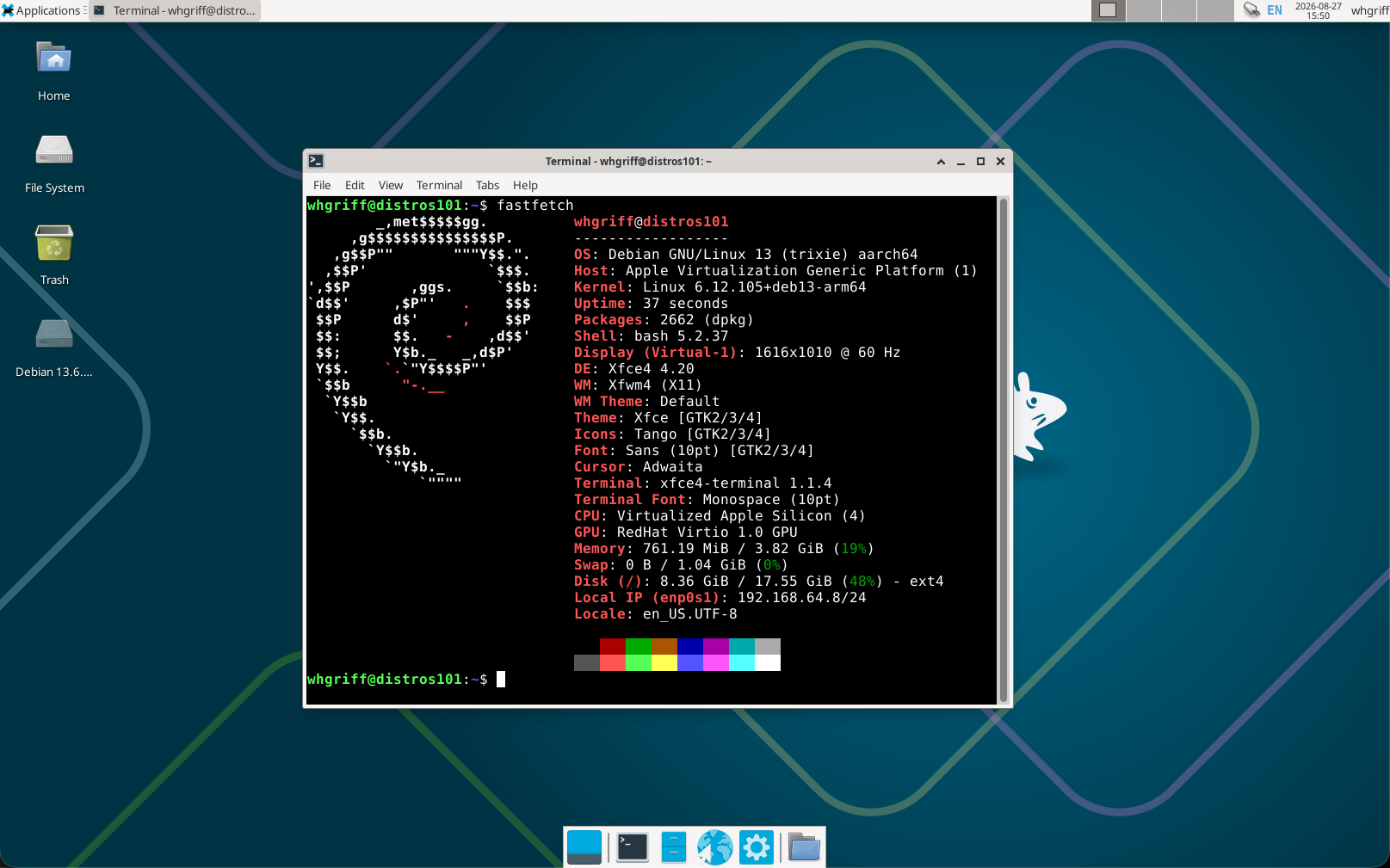
Desktop environments offer the “main look” of a computer. They are a software suite that consists of menu bars and menus, status and settings applications, and a handful of applications (like a web browser and file explorer) to get users started.
Some currently notable desktop environments include GNOME, KDE Plasma, and XFCE (shown below).
Ricing
As with any good software engineer or hacker, we should get accustomed to the tools we use, and customize them to best serve our needs. Customization of your distro and environment is known as ricing, where the user interface appearance and action is tweaked to the user’s wants.
For some inspiration, check out r/unixporn.
Today’s Distributions
There are a lot of Linux distributions today.
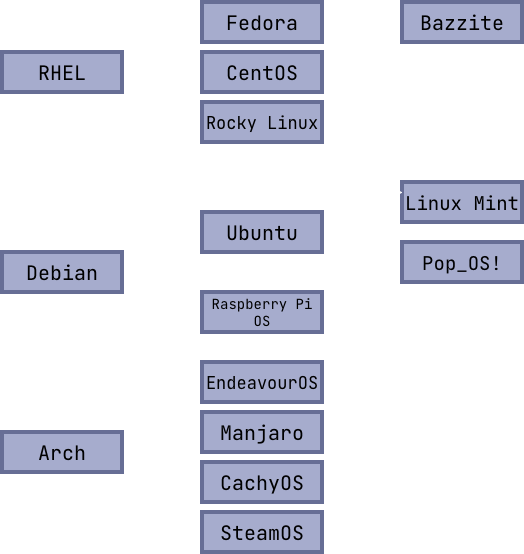
Here’s a diagram of some of the notable ones. Most distributions are a downstream of RHEL/Fedora, Debian, or Arch. But, many exist.
Alpine is a good choice for Docker containers because it is extremely lightweight. It uses musl libc and OpenRC.
Gentoo is a fun tinkerer’s choice as its main method of package installation is compilation, not downloading pre-compiled binaries. It has an emphasis on customization.
Asahi is an option for those choosing to run Linux on Apple Silicon machines. It is currently being developed for the latest M-series chips and has lots of interesting articles on reverse-engineering Apple’s products.
FreeBSD is an alternative to GNU/Linux as it uses the BSD Kernel, and with its software falling under the BSD license, it provides a different flavor of open source.
Extra
If you’re looking to try out a Linux distribution, I’d highly recommend something like Ubuntu or Fedora. They offer a good mix of recent software and dependability, and both are widely used, so there are plenty of support articles and guides. I personally have used Fedora since this past summer, and I’ve found it very easy to move over and use for my personal computing.
If you want to answer an initial questionnaire and let distros fight it out to see which one you should try next, check out distrofighter!
If you want to try out a distro but don’t want to spin up an entire virtual machine, check out distrosea.