Virtual Private Servers and Network Attached Storage
Introduction to running software on cloud infrastructure and storing big data on dedicated storage hosts.
Overview
This meeting covers two different, somewhat related topics related to cloud infrastructure and self-hosting.
Virtual Private Servers
What’s in a server? If you’ve ever built a desktop computer, you know it will have:
- A central processing unit (CPU)
- Some RAM, probably DDR4 or DDR5 for newer machines
- Some disk, either in the form of an SSD or HDD
- Possibly a graphics processing unit
Similarly, compute nodes in a server rack will have similar components. Of course, a rack in a datacenter may contain roughly 30-40 nodes, and a datacenter may have 10s or 100s of racks.
Deploying a server is costly. First you must select and purchase the components, then build the server, then pay for power and networking just to get it running. Once it runs, you must spend time configuring the operating system and services, and more time fixing problems when they occur. You must also replace components every few years when their performance starts to wane or hardware failures occur.
There exists an alternative: rent computing resources from a datacenter. A
datacenter can provision you some of its computing resources, allocation some
amount of CPU cores, disk space, memory, and network bandwidth for a monthly
fee. Your “virtual private server” can then be accessed via a remote shell like
ssh, and configured to your liking. You can also be provisioned an IPv4
address, which makes hosting public services much easier. Another neat thing
about renting compute is that you aren’t responsible for hardware failures. Much
of the risk of rolling your own hardware is outsourced to the cloud provider.
Furthermore, developers wanting to host some software application typically do not need the resources of an entire server. A pastebin, for example, is a really handy piece of software with negligible resource consumption. Chat or proxy servers similarly punch above their weight class in terms of the ratio between resource consumption and utility. If you intend to host a handful of these kinds of applications, should you rush to build your own server?
This choice really depends on the nature of your workload. Often, it makes more economical and logistical sense to run a lightweight service using cloud compute. Factors such as compute price, privacy, security, network I/O latency, and availability might play into your decision.
The rest of this section will discuss what goes into setting up a virtual private server using a cloud provider.
VPS providers
First, you must select a provider. The biggest tech giants offer infrastructure-as-a-service platforms, like Amazon Web Services, Google Cloud Platform, and Oracle Cloud. There also exist smaller “mom and pop” hosting providers with slimmer offerings. An example is Vultr, a smaller hosting provider that Professor Bui uses to host some of his services.
When you create an account with a hosting provider, you will have to add a payment method so they can charge you as you use compute resources. This obviously requires some diligence on your part so that you don’t get stuck with a runaway computing bill. Of course, with a VPS, typically your usage is rate limited based on your hardware configuration, but just make sure you carefully look at what the costs will be. Typically, a 1vCPU VPS with 5GB of RAM and a 20GB disk goes for $5/mo.
Hardware configuration
After you create an account with a hosting provider and set up your billing, you
can create a compute instance (the VPS). Compute instance come in all kinds of
shapes and sizes, so much so that the options can be overwhelming at first. This
is a good time to step back and think about what you are actually planning to
run on the system: get a sense of how much memory, disk, and CPU resource
consumption your application requires. If you aren’t sure, try provisioning a
lightweight VPS first, and measure your workload using profiling utilities like
top. It is easier to expand a small VPS to include more resources, but
annoying to take a large VPS and make it smaller (especially when adjusting disk
sizes).
Most hosting providers will have some kind of catalog describing their “instance types”. These catalogs typically organize instance types based on the kind of workload they are best suiting for (i.e. memory intensive vs CPU intensive vs. disk or network I/O intensive). In a given category, there will be a range of options with different performance characteristics at different price points. Try to narrow down your options based on one or two hardware criteria to make things simpler.
Software configuration
Once you select your instance type, you’ll have to pick a host operating system for your VPS. This is mostly a matter of taste, though some workloads may be better suited to an application specific distro. Generally speaking, a standard, general-purpose Linux operating system like Debian or Ubuntu will do the trick.
Network configuration
Make sure your VPS comes with a public IPv4 address. This makes the VPS accessible by other devices over the internet, which is essential for hosting any services.
SSH Keys
VPS provides will have a web-bashed shell you can use to access you compute
instance, but typically it is much easier to install an SSH key on the remote
server and use ssh to access it over the internet. Here is a
complete guide on how to set this up,
but let’s consider a basic example here.
Say you use ssh-keygen on your laptop:
❯ ssh-keygen
Generating public/private ed25519 key pair.
Enter file in which to save the key (/Users/samneisewander/.ssh/id_ed25519): vultr
Enter passphrase for "/Users/samneisewander/.ssh/vultr" (empty for no passphrase):
Enter same passphrase again:
Your identification has been saved in /Users/samneisewander/.ssh/vultr
Your public key has been saved in /Users/samneisewander/.ssh/vultr.pub
The key fingerprint is:
SHA256:y90O5BMYgBElMMjv7TQGKBQGdNsWYhhRhWF/piFQ9Qo samneisewander@kurama.local
The key's randomart image is:
+--[ED25519 256]--+
|=OXXOOo          |
|o+=o*.o.         |
|. oE = +.        |
|.. o+ *  o       |
|. . oo  S o      |
|   . = . = o     |
|    + . o = .    |
|     .     +     |
|            .    |
+----[SHA256]-----+
Here I have named my key pair vultr, producing two key files:
- The public key file in
~samneisewander/.ssh/vultr.pub - The private key file in
~samneisewander/.ssh/vultr
I can copy and paste the contents of vultr.pub into my Vultr dashboard (or
whatever hosting provider I use, they all provide similar features), and
configure my VPS to use it.
On my laptop, I’ll add the following lines to my ~samneisewander/.ssh/config:
Host vultr-vps
  HostName 149.42.42.131 # This is an example IP, you would replace this with the actual one.
  IdentityFile ~/.ssh/vultr
  User root
…creating a new alias called vultr-vps for my VPS so that my ssh client
knows the IP address, private key, and user I want to use when accessing my VPS
with ssh vultr-vps.
Application layer services
So… what to run on the VPS now that it’s set up?
Let’s walk through a simple application that will help you get your feet wet with Linux: ssh-chat.
ssh-chat is a chat server that allows users from the public internet to
connect to a chat room and send messages via their ssh client. This
application poses a couple interesting challenges:
sshclients connect to port22by default. This makes sense, becausesshd, the daemon service running on our VPS, listens for incoming ssh connections on port 22. When it receives one, it forks a instance of ashellwhich you can use to manage your VPS.- However, we don’t want our users’
sshclients to connect tosshd! Instead, we want them to connect to our chat server. - That means we have to configure our chat server to listen on port
22, and oursshdto listen on some other port.
How can we configure sshd to listen on a non-standard port? Most applications
on a Linux machine store their configuration files in /etc, and typically you
need to be root to modify those configurations. Luckily, we have already
configured our remote shell to login as root when we ssh into vultr-vps
using our registered key pair. Therefore, from the VPS, we can run
vim /etc/ssh/sshd_config and edit the lines:
Port 2222
PermitRootLogin prohibit-password
PubkeyAuthentication yes
PasswordAuthentication no
After running systemctl restart sshd, our daemon should only accept remote
shell connections on port 2222. Therefore, we need to update our ssh config to
use the new port:
Host vultr-vps
  Port 2222
  HostName 149.42.42.131 # This is an example IP, you would replace this with the actual one.
  IdentityFile ~/.ssh/vultr
  User root
But wait… now when we run ssh vultr-vps, it hangs. Why?
The firewall.
Yep. Linux systems usually ship with some kind of software firewall that blocks
unwanted incoming traffic. The one installed on our VPS is likely ufw (short
for uncomplicated firewall), and is configured out of the box to only permit
incoming traffic on port 22 (for remote shells), NOT port 2222. So we need
to permit traffic on that port. But how can we manage that when we can’t even
ssh into the VPS?
The solution is to use the web shell provided by the hosting provider’s dashboard. These shells do not operate over ssh, but rather make use of a serial connection to the VPS, which allows us to access our machine even in these (surprisingly common) “oops I locked myself out of my own computer” situations.
With a root shell using the web dashboard, we can run ufw status to see what
ports are open on our VPS and then ufw allow 2222 to permit traffic to enter
our VPS on the new sshd port. After running ufw reload, the changes will
take effect and we can ssh into our VPS normally again.
Now, time for the chat application. Let’s curl the binary into our home directory:
curl -sLO https://github.com/shazow/ssh-chat/releases/download/v1.10/ssh-chat-linux_arm.tgz
Extract it using tar:
tar -xzf ssh-chat-linux_arm.tgz
…and finally run the application:
./ssh-chat/ssh-chat --bind ":22"
You’ll notice the application complains because we haven’t given it a key pair
to use for it’s identity. Let’s make one using ssh-keygen called chat, and
rerun the program:
./ssh-chat/ssh-chat --bind ":22" -i /root/.ssh/chat
Now the application should run! Try having your friends ssh into your VPS
using its public IP address.
One caveat is you might notice your laptop complains when you try to ssh in.
This is because your laptop has saved the public key signature of the VPSs
sshd key pair back when that was still hosted on port 22. Now that you are
connecting to an ssh server that is advertising a different key pair, but on
the same host and port, your client thinks something is afoul and will scream
bloody murder and refuse to connect. Of course, we know that the reason for this
change is because we switched which application and key pair are listing on that
port, and that nobody is trying to man-in-the-middle us. We can stop our client
from producing these warnings by editing ~/.ssh/known_hosts and removing the
offending entries from the bottom of the file.
Congratulations, you’ve just deployed your first service in a cloud VM! Hopefully, this mini project is a gateway drug to the rabbit hole that is self-hosting and distributed computing in the cloud.
Network Attached Storage
Over the course of your lifetime, how much digital junk will you hoard?
How much data do you generate per year? A few gigabytes for photos and videos on your cell phone perhaps? Maybe tens or hundreds of documents, spreadsheets, downloads, game saves, text messages, or other application data? If you think about it for moment, could you quantify it?
People generate loads and loads of data. Some of it they care about, like photos and text messages. Some of it they could care less about, like their browser cache. Most people take the longevity of that data for granted, completely oblivious to how or where it is stored until it becomes a big problem.
Does this sound familiar?
- Mom stores her photos in the cloud
- Mom’s phone stopped taking automatic backups when she ran out of cloud storage
- Mom ignored the notifications because a larger storage plan costs more
- Mom phone is swallowed by a shark.
- Photos gone :(
This problem stands to be exacerbated as more and more of people’s lives are represented using digital means. These days, it is natural to store critical things like tax documents, health records, government documents, leases, payment histories, etc. etc. digitally. The problem of data integrity, sovereignty, and privacy is more and more poignant every day.
Turning the focus to corporate concerns, companies are also responsible for storing large amount of data. Media companies, for example, ingest large amounts of bulky footage which needs to be processed, transcoded, and archived. Software companies need to archive software releases and the dependencies needed to build them in order to support their customers whose problems need to be reproduced and fixed on a particular release. In these examples, we need to think about scaling storage capacity to handle these demanding workloads.
Generally speaking, the on-device storage on personal computing devices is not enough to meet these demands. A scalable solution is necessary. Enter network attached storage.
The basic strategy for a network attached storage server is to take a bunch of high-capacity storage devices, stuff them in a box, and hook that box up to the network so that other devices with limited storage capacity can access a much larger pool of persistent storage. Self-hosted and cloud storage services share a similar architecture, so this article will review the levels of abstraction needed to understand these systems.
When building storage server, the architecture addresses these concerns:
- How much data can be meaningfully stored (Capacity)
- How resistant is the data to hardware failures (Integrity)
- How easily can data be accessed (Availability)
The discussion will address these concerns.
Storage media
A storage server is built upon several storage devices, so the first decision that needs to be made is which one to use.
There are many kinds of storage media:
- Tape drives, used for massive archival storage where read/write performance does not matter.
- Hard drives, the defacto standard for enterprises and data centers for fast contiguous reads/write performance, capacity, and long term storage
- Solid state drives, a modern, compact storage medium with extremely fast random access.
…etc. For a typical storage server, some mixture of hard drives (HDDs) and solid state drives (SSDs) are used depending on the workload.
Hard drives are mechanical devices that read and write data on spinning platters via a magnetized head. This mechanical design has some implications:
- Hard drives experiences mechanical wear. Eventually, sectors will becomes unreadable or the head may crash into the platters, destroying the drive and any data it contains.
- As a result of the head physically rotating around contiguous sectors of the drive, these devices are best suited for contiguous workloads, like media streaming or archival storage.
- Hard drive technology has been around since the 1970s, and devices resembling
those used today have been around since at least the 2000s. As a result, hard
drives are (usually) cheap, abundant, and predictable.
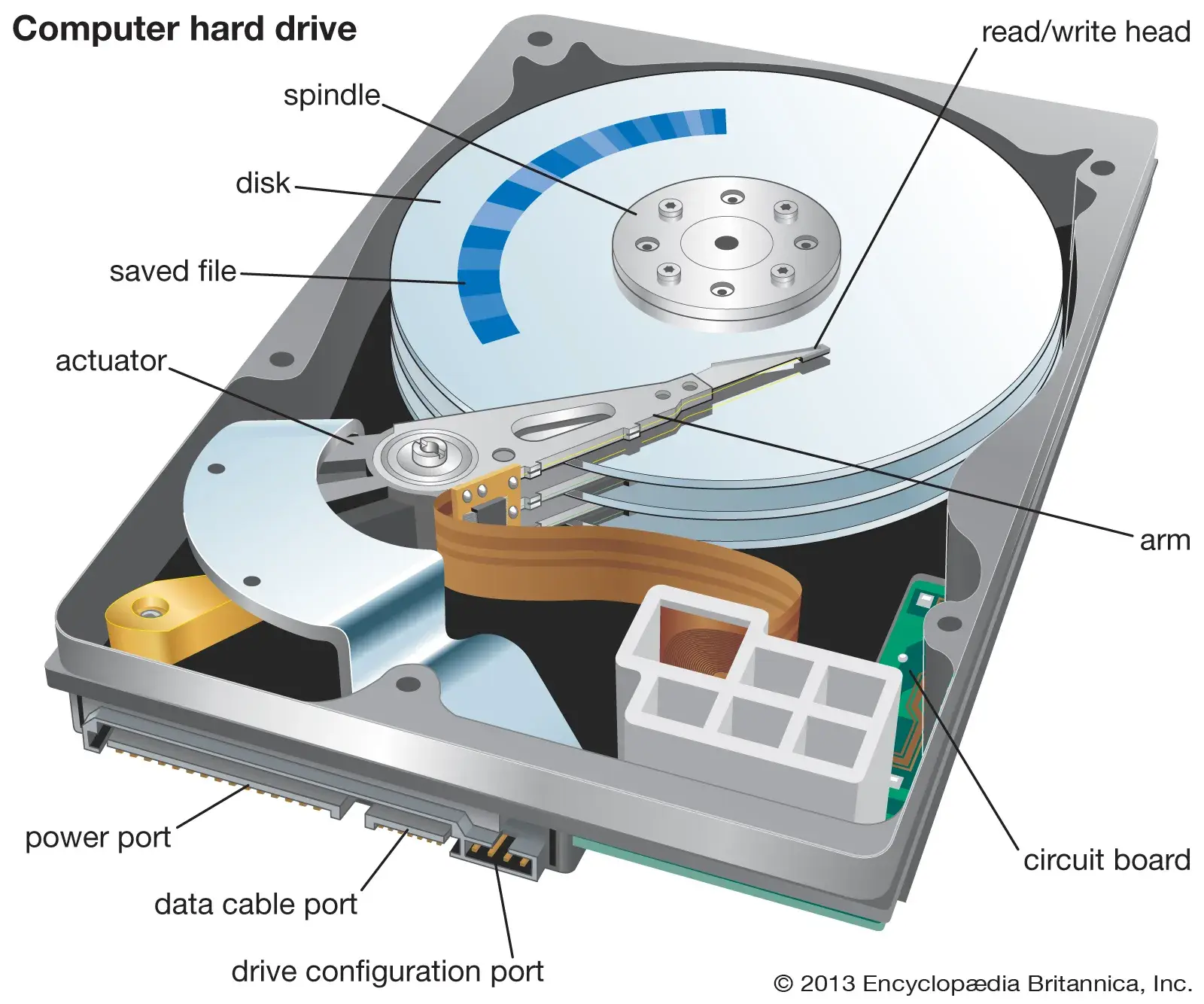
Solid state drives make use of NAND flash technology to program and erase bits of data. Since these devices do not have moving parts, they do not experience mechanical wear like hard drives; instead, the NAND deteriorates as it is programed repeatedly. This has some implications:
- SSDs are great for extremely fast random access, making them suitable for hosting databases or large quantities of small files. Most personal devices like cell phones and laptops use SSDs, since their compact form factor and performance is suitable for those use cases.
- SSDs exhibit great longevity, especially if they support read-heavy and write-light workloads, since they only wear when they are written.
- SSDs are more expensive because NAND flash is expensive.
Building the server
Since storage servers are mostly doing network and disk I/O, the other
components in the system do not need to be high-performance. Essentially any
reasonable CPU, motherboard, power-supply, etc. will do. Most people building a
personal NAS will repurpose an old desktop computer and throw some hard drives
in it. A fancier option is to use a NAS chassis with (possibly hot-swappable)
drive bays, like this: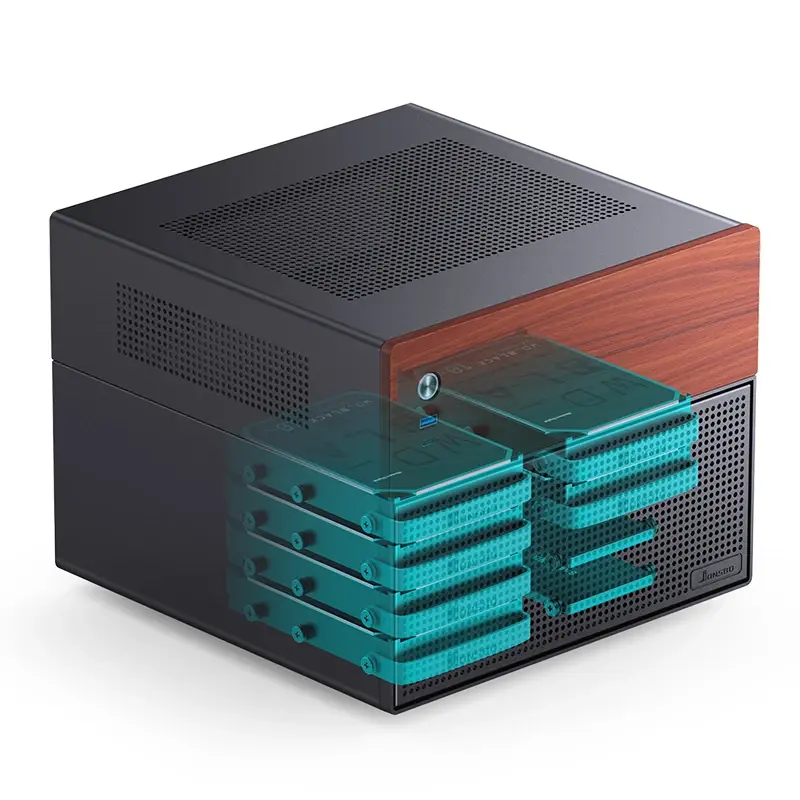
This kind of “standalone” form factor is generally what you’ll see for
self-hosted storage servers. Enterprise solutions will probably ship a storage
server in the form of a server rack, like this: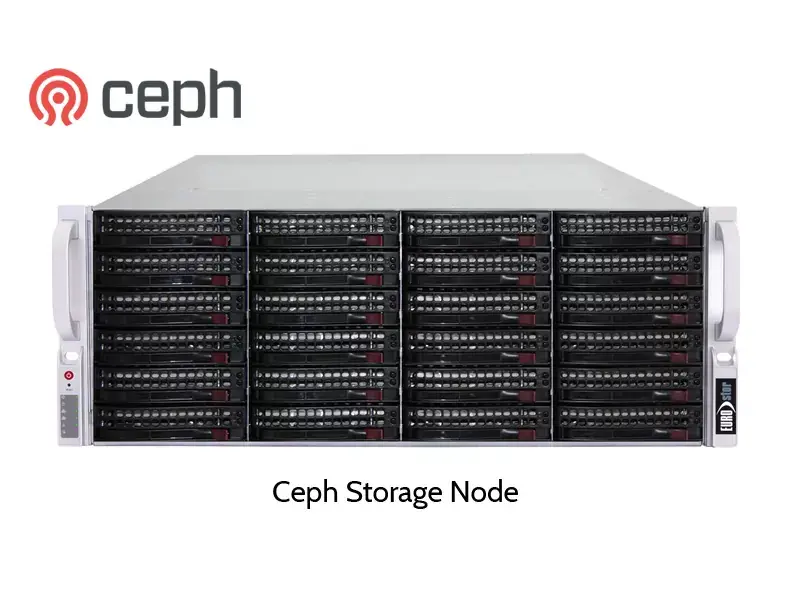
Scaling further, we can have a whole rack full of storage servers, along side
other compute servers or network gear: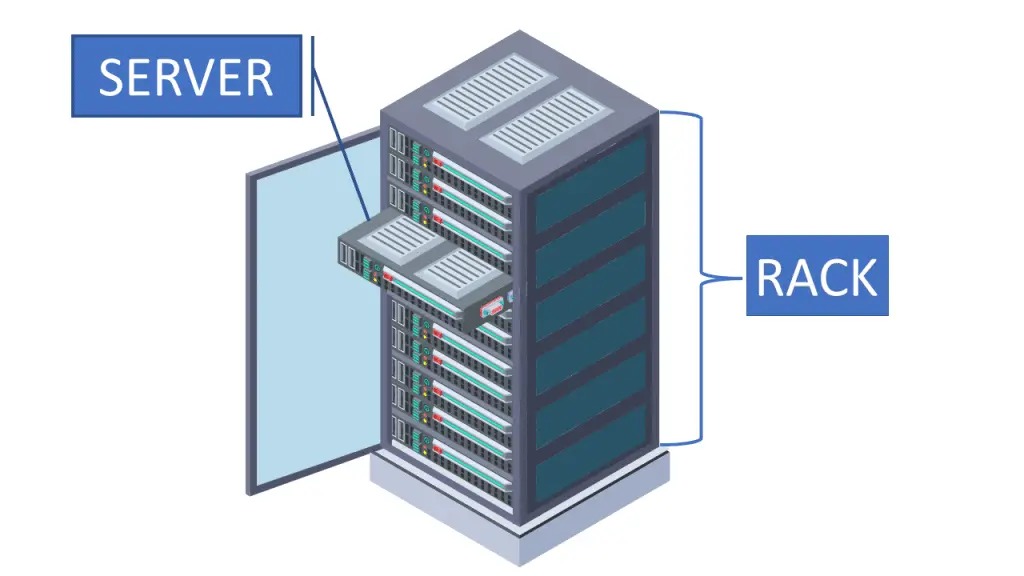
This is the kind of configuration typical of a high-performance computing cluster like the CRC or a datacenter used for cloud-based services like Google Cloud Platform or AWS. Notice that both are fundamentally just a bunch of hard drives stuffed in a box.
Storage pools
Consider a single storage server (either a single rack server or a standalone box). At this point, the capacity concern has been addressed; many high-capacity drives are waiting, ready to be accessed over the network by other machines. However, the integrity problem is still lingering. What happens in the event of a drive failure, perhaps caused by a head crash? Without a more sophisticated design, the data is simply lost. Let us address this concern next by arranging our hard drives into storage pools.
A storage pool is a software abstraction of a collection of hard drives. This abstraction is implemented by a filesystem like ZFS. Arrange hard drives in a software abstraction allows the operating system to reserve some physical drive space for redundancy mechanisms like RAID and save snapshots of the state of the storage pool which can be restored later in the event of data loss. Typically, administrators (that’s you!) will create storage pools with a certain workload in mind; for example, an administrator might create a pool of 4 SSDs which will later be used to store a database for a instance of an image server like Immich.
Operating systems
Network storage servers, like other modern servers, have an operating system. There exist operating systems tailored for this use-case, such as TrueNAS or Unraid. Of course, general purpose operating systems like Debian will also do the trick (albeit with more configuration). A nice choice for self-hosting is TrueNAS Community, which runs on Debian and ZFS under the hood. It provides a handy web dashboard with lots of observability metrics, a curated package repository for running services with Docker, and a VM hypervisor. Installing TrueNAS is just like installing any other operating system; here is a guide for this.
Application layer services
Finally, with the storage server built, operating system installed, and storage pools configured, it is time to spin up an application on the server! The simplest thing to run is a file server, like Samba or NFS. A file server facilitates file transfers between the storage server and other devices by “mounting” a directory from the file server on another device. To the client device, a mounted directory looks and feels like any other directory on the system, but when file are read from or written to it, they are actually being transmitted over the network to the file server.
While this strategy works, it can be difficult for civilian users to understand and configure. Instead, it might make more sense to run a more complicated application on the storage server that provides users with conveniences like a web interface, a mobile app, and user accounts. An example mentioned earlier is Immich, a self-hosted clone of Google Photos with features like automatic backups from a cell-phone, machine-learning face recognition, single sign on via Google accounts, and shared albums/libraries. The application layer services you choose to deploy depend on the needs of your users.
Self-hosted or Cloud?
A very common problem that appears everywhere in software and in life is the decision to solve a problem yourself or pay someone else to solve the problem for you.
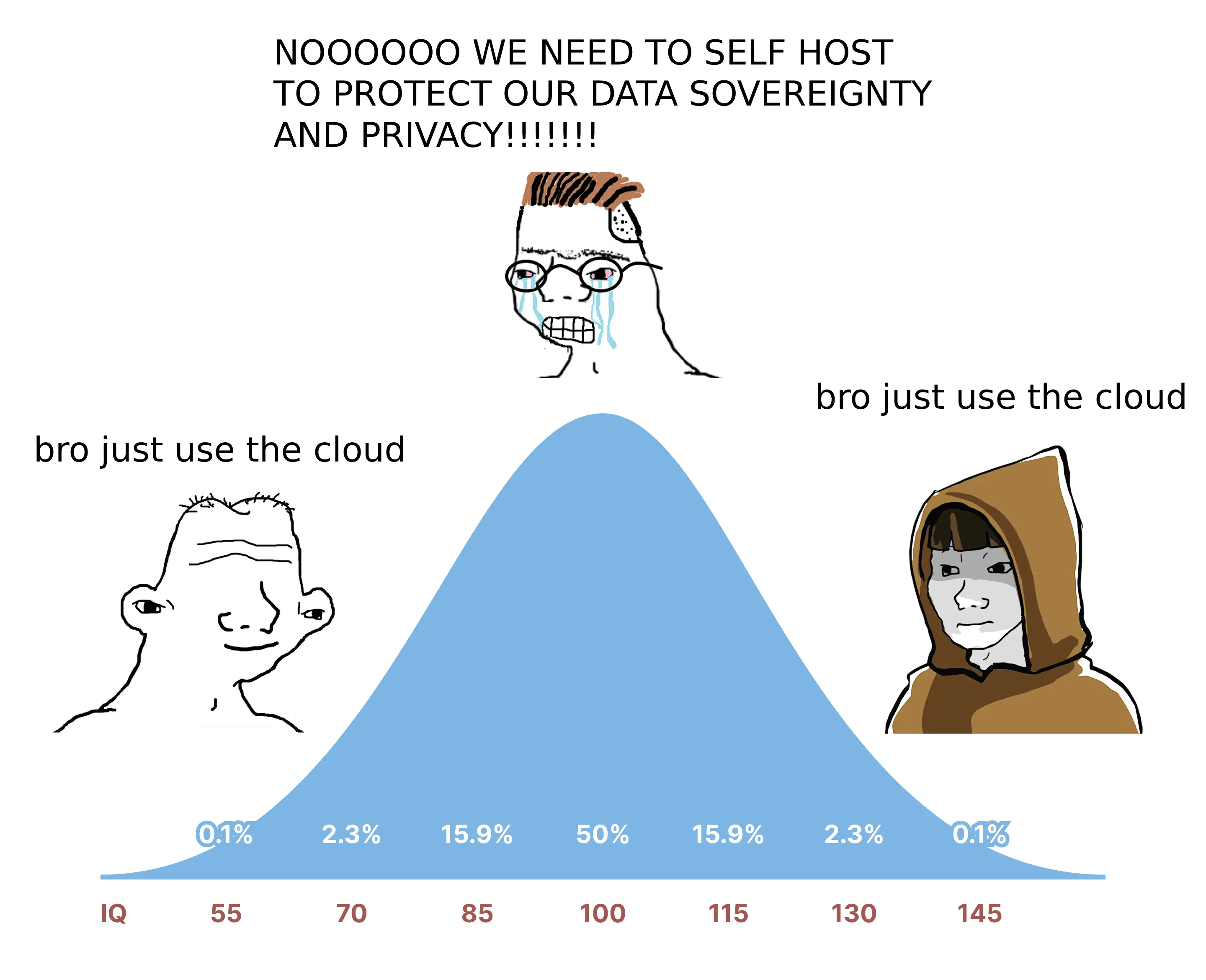
Purchasing Google Photos costs:
- $2/month for 100GB
- That’s it
Self-hosting costs:
- Hundred of dollars in hardware (which breaks and needs to be replaced every 5-10years)
- Tens of hours of time configuring and maintaining the system when problems arise
- Risk, since you are responsible for data loss, failures, outages. This is also often overlooked when doing price estimates.
Of course, a self-hosted solution nets you privacy, sovereignty, and control. Some companies would pay a high premium for stronger guarantees that their intellectual property will not be leaked or stolen, which makes self-hosting more compelling. Also, the data privacy and price factors are influence by LLMs and the ongoing massive datacenter scale out, but I will spare you the soapbox on that.
Another factor is availability. Network I/O is expensive, but not all network operations are equal. Consider the media company example: editors may be editing footage off of the NAS and expect relatively low latency, which they certainly will not get from the cloud. It could also be the case that massive cloud data storage solutions price not only capacity but also bandwidth, that is, how much data you are downloading and uploading. In this case, a self-hosted solution makes much more economical sense.